

Work Instruction (WI)
How to use the LSPediA Support Portal
to Generate a Support Ticket
1. Purpose. 3
2. Definitions & Acronyms. 3
3. Referenced Documents. 3
4. Overview. 3
5. Creating a Ticket in the LSPediA Support Portal 3
1. Purpose
The purpose of this work instruction is to detail the procedure to follow to create a support ticket in the LSPediA OneScan Support Portal.
2. Definitions & Acronyms
* = Required field – an * appears next to the required field – cannot be left blank.
3. Referenced Documents
N/A
4. Overview
One of the features of the LSPediA Support Portal is to capture, maintain/update and resolve issues users are experiencing.
5. Creating a Ticket in the LSPediA Support Portal
5.1 Direct your web browser to support.lspedia.com. The following screen will appear:
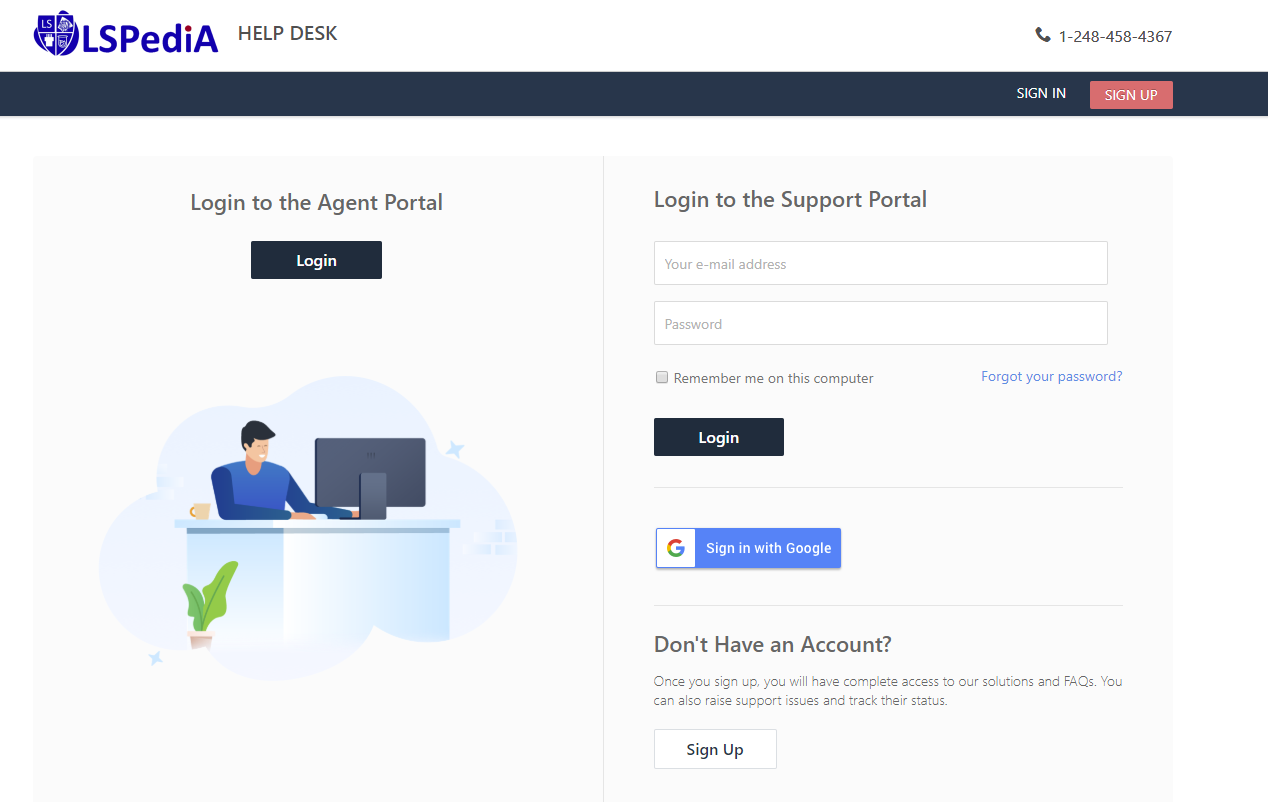
5.2 If you already have an account, skip to step 5.5.
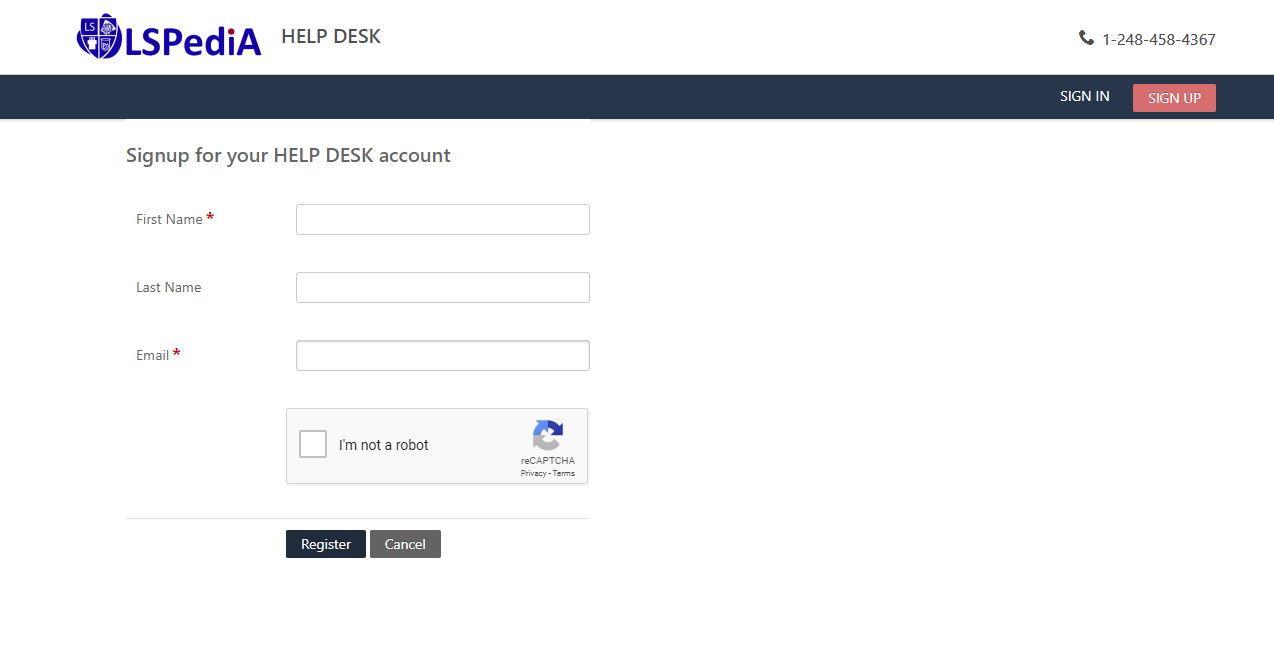
5.3 If you do not have an account, click on the Sign Up button to register for an account. Enter your First and Last Name and your Email Address.
5.4 Click on the I’m not a robot CAPTCHA check box and complete the requested screen that comes up. Once the Captcha is complete, click on the register button. An email will be sent to you with a link to activate your account. Click on the link and the system will automatically log you in. Skip to Step 5.6.
5.5 Log in. Enter your email address and password to log into the support portal
5.6 To create a ticket, click on the New Ticket button:
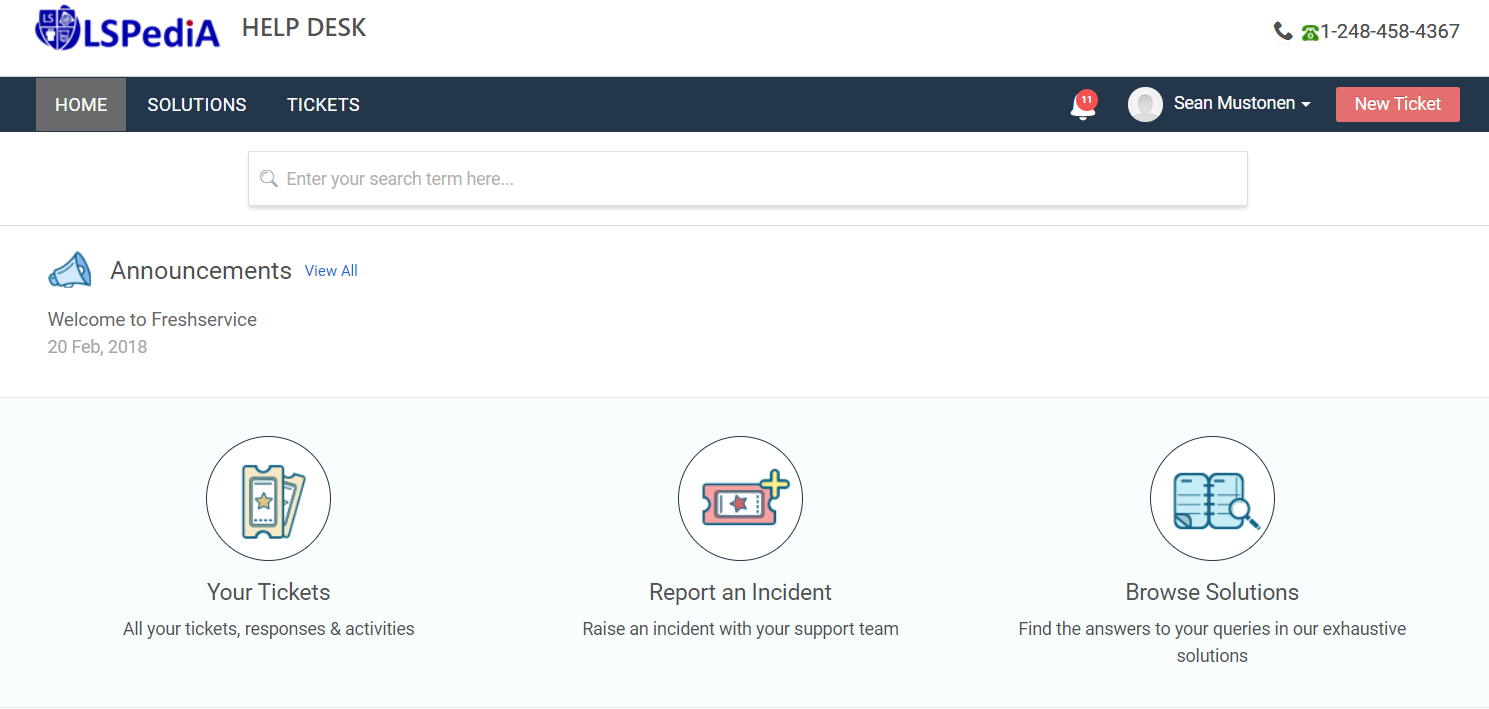
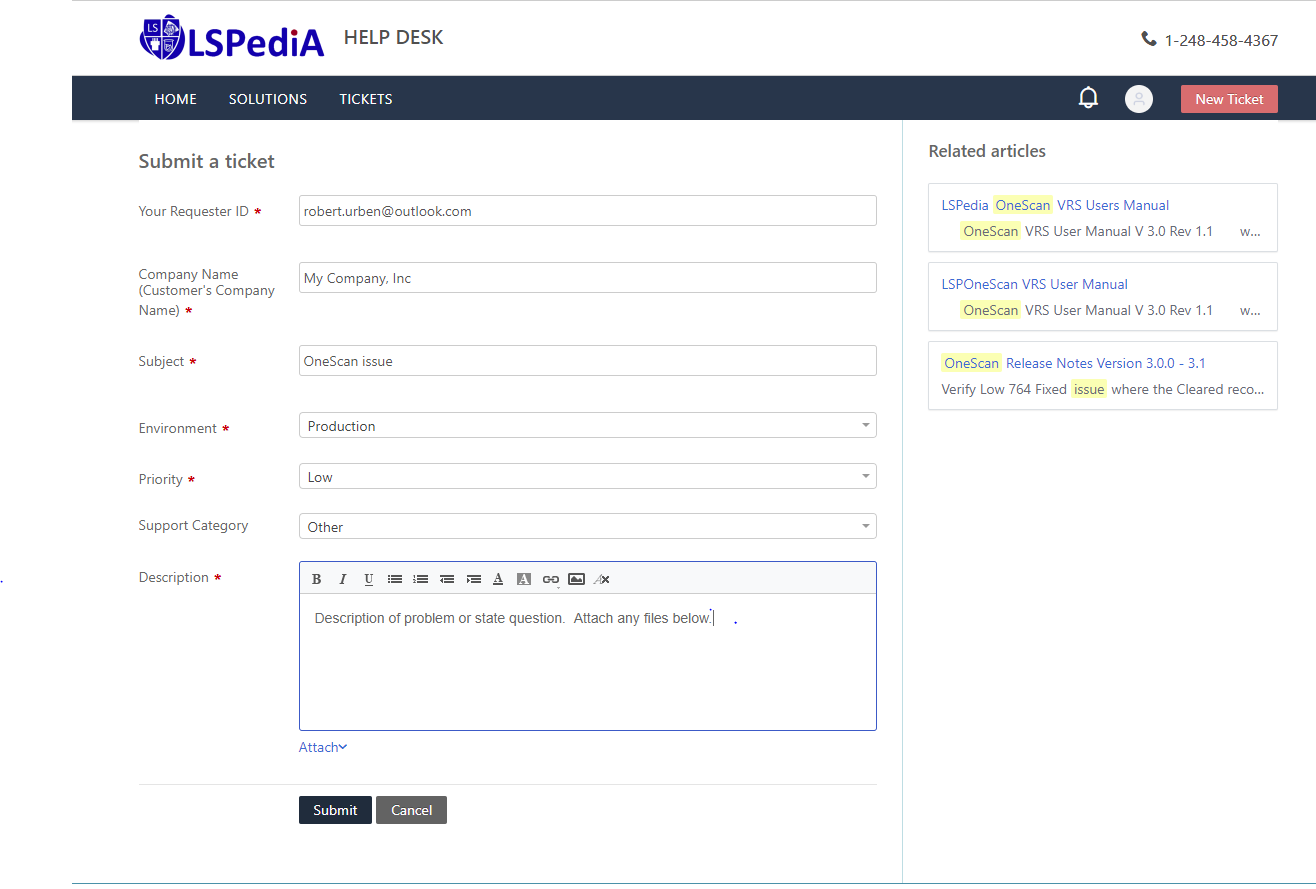
5.7 Enter all Required Fields (*), then click Submit. You will then receive an email confirming receipt of your support ticket.
* Your Requestor ID – will already be pre-filled with your User ID
* Company Name
* Subject,
* Environment – select from pulldown
* Priority – select from pulldown
Support Category – Optional
* Description - (Provide a detailed description of the issue you are having, any troubleshooting you have tried and provide any supporting attachments (examples, screenshots, etc) to help LSPediA trouble-shoot the issue.
NOTE: If you have any questions, call the phone number at the top right hand of the screen.