

Work Instruction (WI)
How to Perform a Warehouse Scan utilizing
LSPediA’s OneScan Verification Router Service (VRS)
4. Accessing the LSPediA OneScan Verifier® VRS System.. 3
1. Purpose
The purpose of this work instruction is to detail the procedure for performing a warehouse scan utilizing the LSPediA OneScan Verification Router Service (VRS).
2. Definitions & Acronyms
VRS – Verification Router Service: As defined by the HDA, refers to using a third-party routing system to send product information back and forth between distributors and manufacturers.
3. LSPediA Recommendations
It is recommended to use Google Chrome for accessing the LSPediA OneScan Verifier® VRS system link.
Most barcode scanners will work with LSPediA’s OneScan VRS System. LSPediA recommends using a Honeywell Voyager 2D scanner or a Honeywell CT60 Mobile Computer.
4. Accessing the LSPediA OneScan Verifier® VRS System
4.1 Connect the scanner to the PC via the USB cable. The PC will recognize the device and the device will power up. If using a CT60 Mobile Computer, power on unit and proceed to step 4.2.
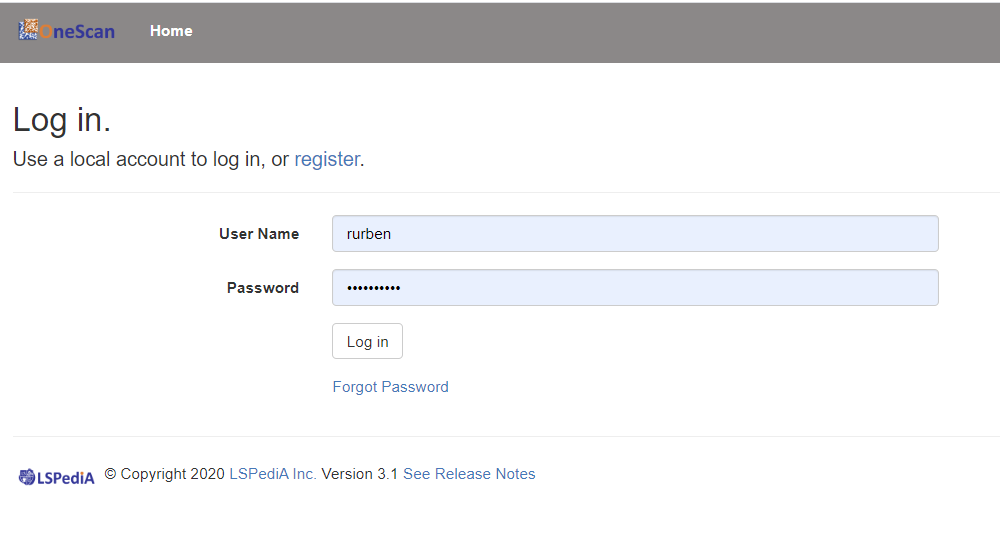
4.2 Open a browser and navigate to the OneScan login page: https://onescan.lspedia.com
4.3 Enter the user-id and password that you created when you registered.
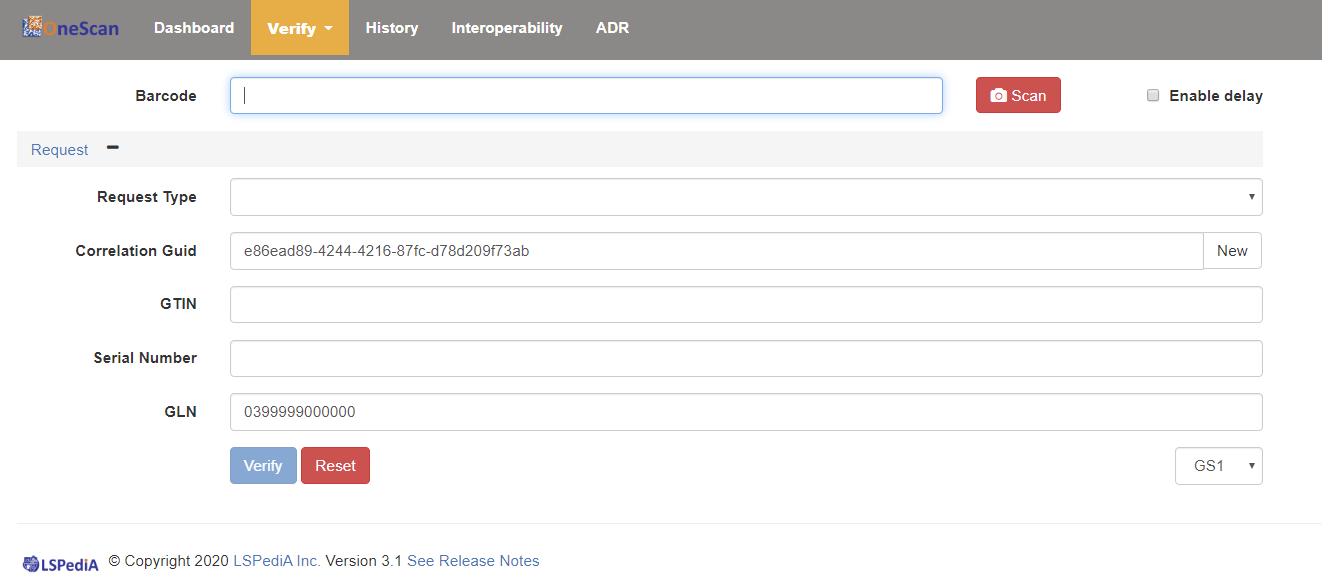
4.4 After logging in to the OneScan System, the following screen is displayed. The “Verify” tab will be highlighted and cursor will be defaulted to the Barcode field.
5. Performing the Warehouse Scan:
5.1 Review WI-004, “Label Sample for Warehouse Training”.
5.2 Scan 1 each of every product in the warehouse.
5.3 To expedite the process, work in teams of 2 people. One person is designated as the scanner and the other person retrieves the product from the shelf and presents it to the person holding the scanner. The product is scanned and returned to the shelf as the next item is selected and scanned. Repeat this process until the entire warehouse has been scanned.