

Work Instruction (WI)
LSPediA’s OneScan Transaction Report (T3) Orders Page Training
1 Purpose. 3
2 Definitions & Acronyms. 3
3 Registering for the LSPediA’s OneScan T3 Order Reports Page. 3
4 After Registration. 4
5 Viewing Reports Page. 4
6 Filter and View Report. 5
6.1 Export & Save the report. 6
1 Purpose
The purpose of this work instruction is to detail the procedure for registering under your supplier to view, export, and track Transaction Reports (T3) in OneScan.
2 Definitions & Acronyms
Transaction Report (T3) – a report containing the unique Transaction Information, Transaction Statement and Transaction History of a specific shipment.
DEA Number – A unique identifier assigned to a health care provider (such as a physician, physician assistant, optometrist, dentist, or veterinarian) by the United States Drug Enforcement Administration allowing them to write prescriptions for controlled substances.
Customer ID – A unique identifier generated by a Supplier for a specific customer.
3 Registering for the LSPediA’s OneScan T3 Order Reports Page
NOTE: An email must have been received from your supplier in order to register.
Select the link in the email to open the registration page using a browser (Google Chrome is the preferred browser) and enter your credentials along with your DEA number and customer ID. The link will be specific to the supplier that is sending the email to the customer.
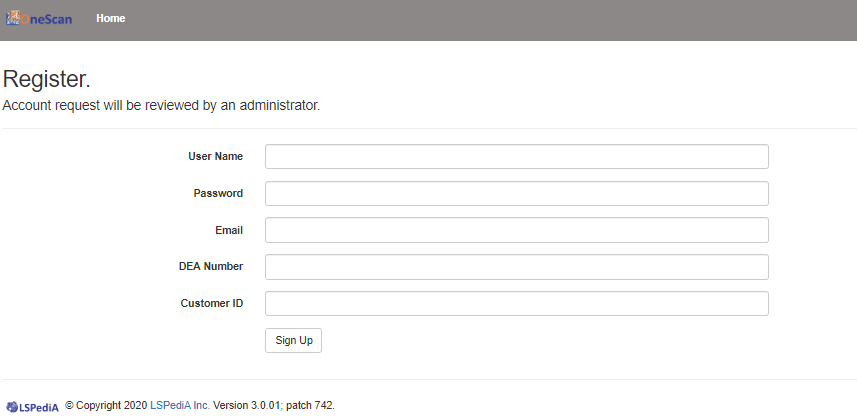
Select the Submit button. The user account request will be reviewed by a LSPediA administrator and enabled.
4 After Registration
Upon receipt of your account activation, log into https://onescan.lspedia.com/and enter your credentials.
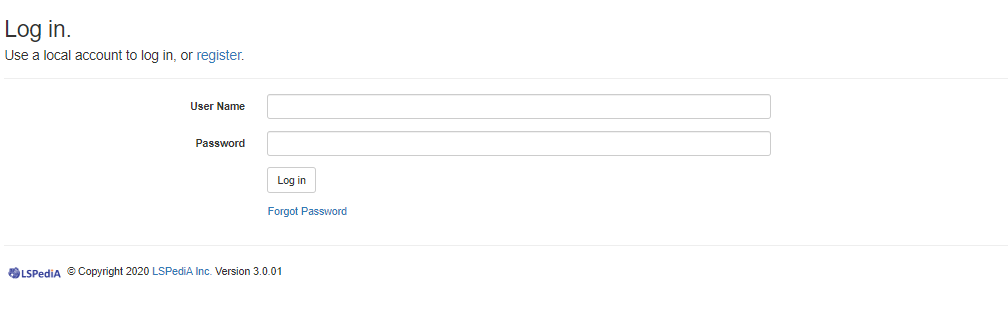
Select the Log In button.
5 Viewing Reports Page
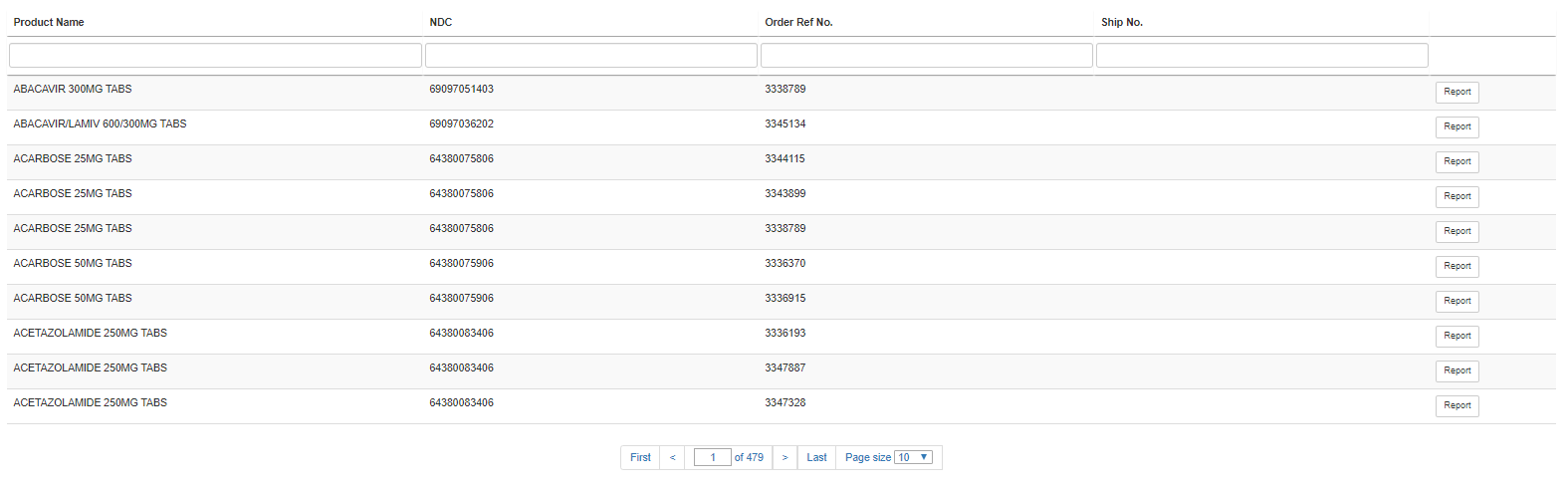
The reports screen displays all your reports.
6 Filter and View Report
The reports can be filtered by product name, NDC number, or order number by simply typing in your criteria in any of the boxes under the column headings.
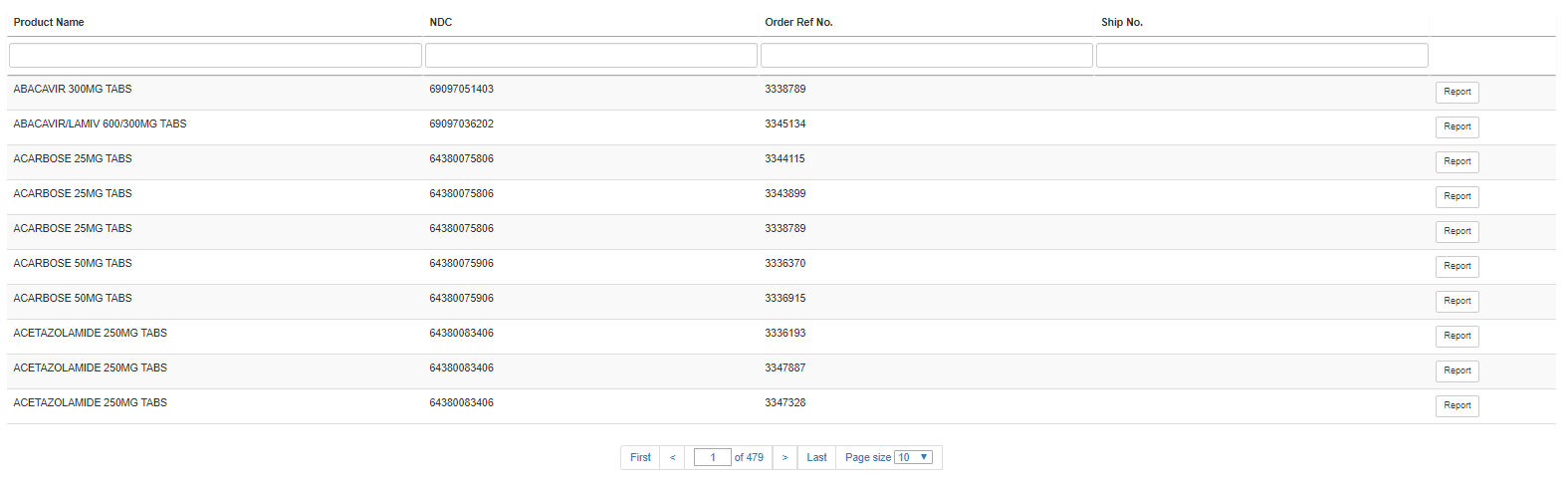
Locate the report you want to view and click the  button on the right side of the entry to view the report. The selected report will display as follows containing all the information for that particular shipment:
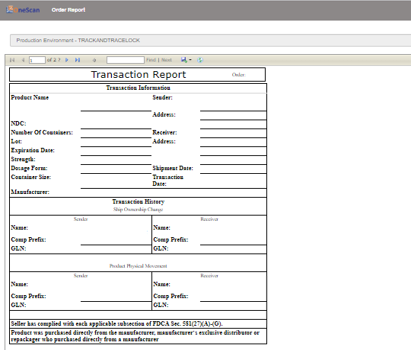
If the report has multiple pages, use the arrow keys on the Transaction Report order page to switch between the pages.
6.1 Export & Save the report
To Save and Export the report, select the Save icon menu pulldown and select the format to save the report in.
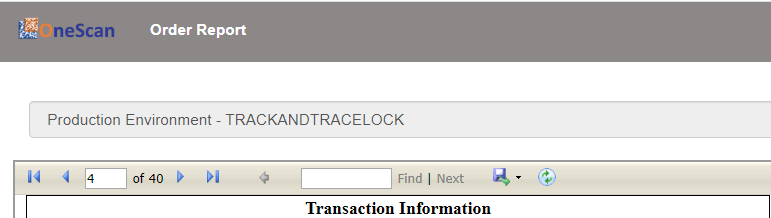
Enter the location to save the Report to.
Select OK.
Repeat Section 6 for any additional reports that need viewing/exporting.