Work Instruction
Go to the GS1 Data Hub website:
- https://dh.gs1us.org/Product/Home
- It will ask for the user ID and password:
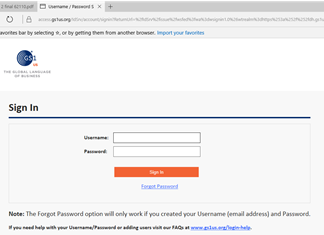
- Enter the Company's email and password.
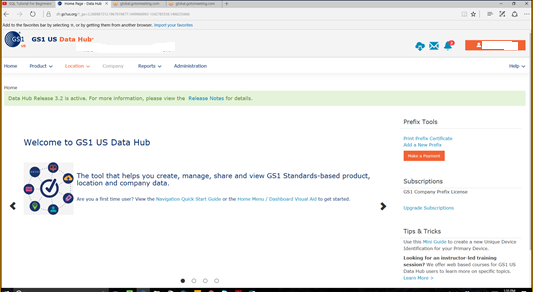
- After successfully entering the Company's email and password you will get to the GS1 US Data Hub main screen:
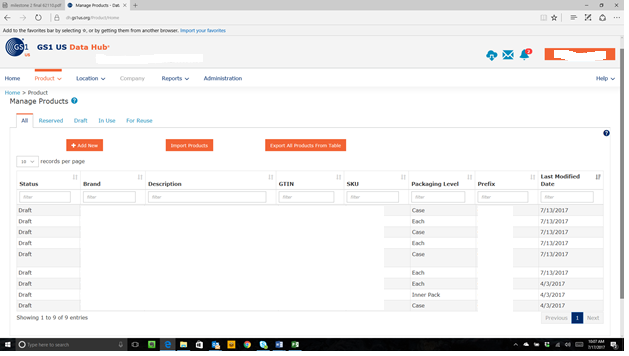
- Go to "Product" then "Manage" option and you will see the list of products already entered in the Data Hub. It will be empty, if no products have been entered yet:
- Click on the
 button and it will take you to the data entry screen:
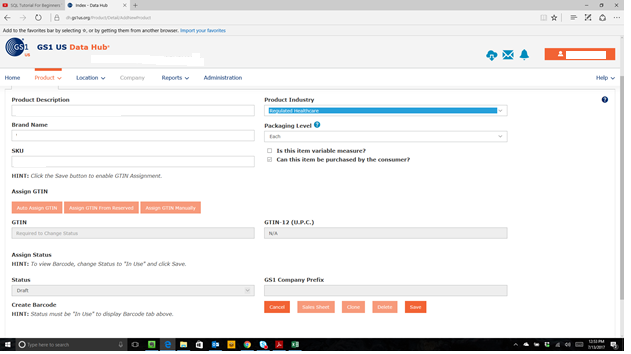
- In this screen you will need to enter the following information:
- Product Description.
- Brand Name.
- Product Industry. Set it to "Regulated Healthcare".
- Packaging label. Each, Case (Shipper), Pallet.
- Can this item be purchased by the consumer?. Check the box if this is an "Each" packaging level.
- SKU. Usually NDC number (with no dashes).
- Now click on the
 button.
 - It will keep you in the same screen but this time the Buttons referring GTIN are activated:
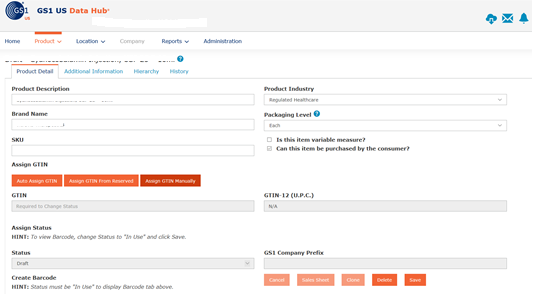
- Click on the
 button, and the following screen will appear:
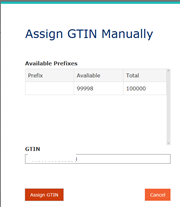
- Enter the GTIN for the product (Pallets do not have GTINs) and click the
 button.
 - Automatically the GTIN 12 U.P.C. and the Company prefix will populate on the screen and the Status will default to "Draft". If the Status is incorrect, correct the Status for the product and all the information on the screen, after checking the information, click on the
 button.
- The same screen will remain but you have successfully entered the product in the Data Hub. To verify it, just go back to the "Product" tab and then "Manage":

- And you will see the listing of all your products that have been entered.

How to enter a CASE GTIN
- To add a CASE GTIN, first you must have entered the Item Level (Each) so you can link it to its parent (the case).
- In the Product Screen, select "Case" at the packaging level, DO NOT check the box for "Can this item be purchased by a consumer?"
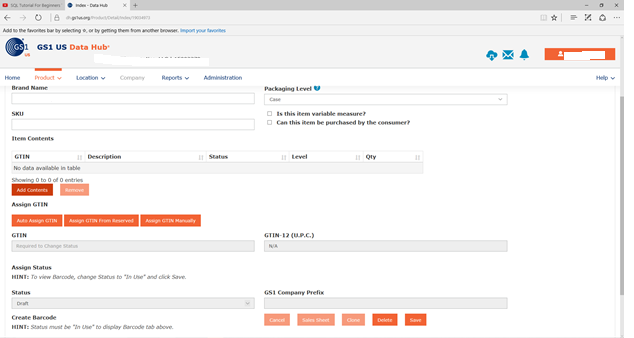
- By selecting the Case as a packaging level, you will activate the
 button. Click on the
  button and a screen with the available Items already entered in the Hub will appear:
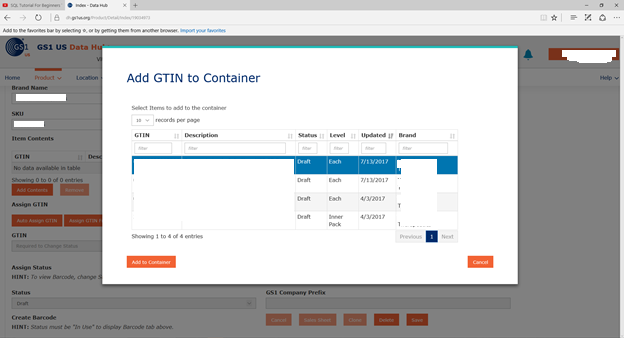
- Select the item for the case and click on the
 button.
 - Save your data by clicking the
 button and it will take you back to the "Add" screen, click again the
  button and at this point the case with the item are linked.
Export Items
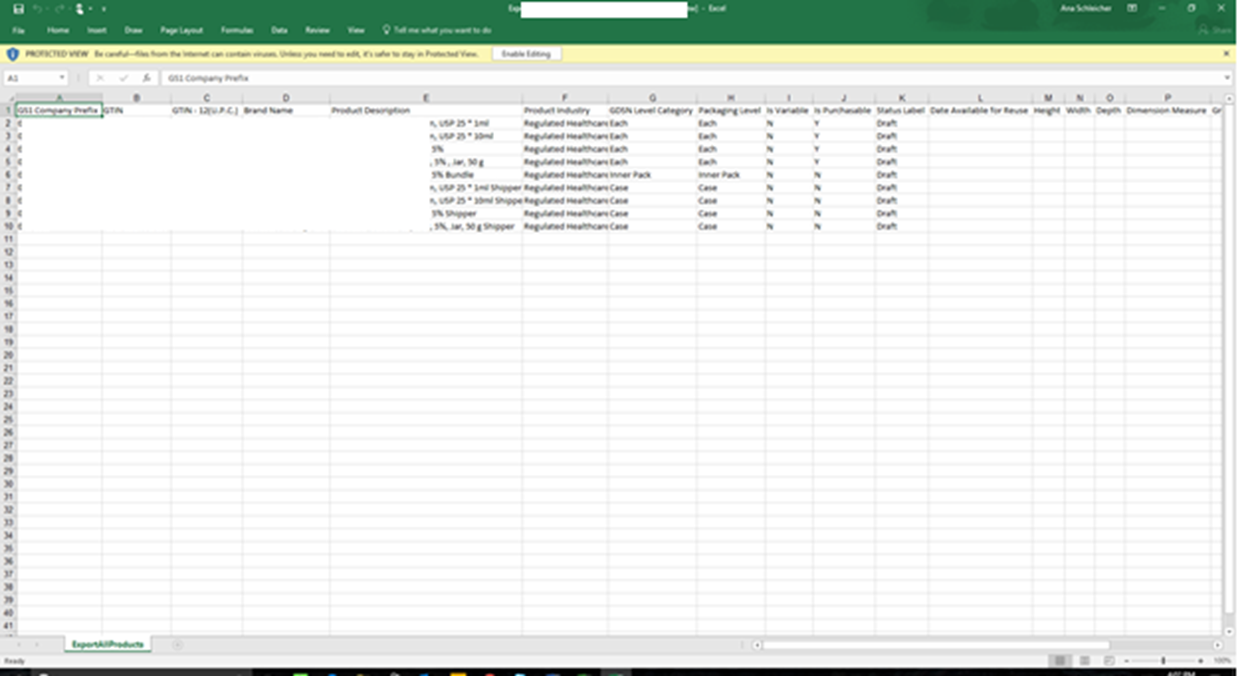
- You can export all the items in the Data Hub to an Excel Spreadsheet. Just select "export All Items" button and it will generate an Excel file. You can see the file by clicking on the
 button on the upper left corner of the screen.
 - You can download that file to your preferred location and it will look like this: