Overview
This article is a guide on how to use the Verifier function in OneScan site.
What is Verifier
Verifier® initiates a verification by scanning a 2D barcode from either an integrated warehouse system or from LSPediA’s VRS web application – onescan.lspedia.com. OneScan® VRS routes the verification to the manufacturer’s serial data repository and retrieves the corresponding response.
Getting Started
- Navigate to the OneScan website and login.
- Click "Verifier" in the top bar menu.
- Click "Verify" from the drop-down menu.
Start Verifying Products
Option 1: Using Scanner
- Click on the "Barcode" field, so the cursor is flashing within the field.
- Scan the products 2-D barcode.
- The Request section should automatically fill in.
- The Request section should automatically fill in.
- The results should be shown at the bottom the screen. If not click the "Verify" button at the bottom the screen.
- Interpret results.
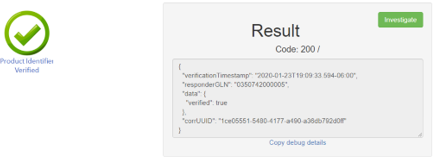
- If a green check mark with code: 200 is shown, then the product is valid.
- If not refer to the Interpreting results table below.
- If a green check mark with code: 200 is shown, then the product is valid.
Option 2: Using Camera
- Click the "Scan" button to the right of the "Barcode" field.
- Place the 2-D barcode up the camera.
- Close out of the pop-out window
- The Request section should automatically fill in.
- The Request section should automatically fill in.
- The results should be shown at the bottom the screen. If not click the "Verify" button at the bottom the screen.
- Interpret results.
- If a green check mark with code: 200 is shown, then the product is valid.
- If not refer to the Interpreting results table below.
- If a green check mark with code: 200 is shown, then the product is valid.
Option 3: Manual Entry
- Expand the "Request" section.
- Fill out the Fields with the necessary information.
- Click the "Verify" button
- Interpret results.
- If a green check mark with code: 200 is shown, then the product is valid.
- If not refer to the Interpreting results table below.
- If a green check mark with code: 200 is shown, then the product is valid.
Interpret Results
Result | Result Explanation | Action Required |
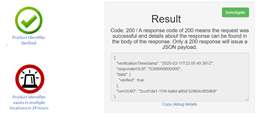
| The 2D barcode scanned is for a valid product. | Follow internal procedures for returning the product to a saleable product status |
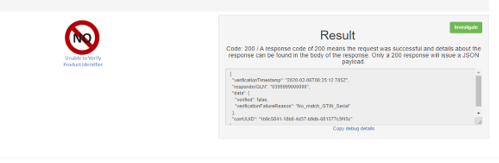
| The 2D barcode scanned resulted in a No Match condition with the explanation for the error displayed under Result.
A notification record will be created, and an email will go to the manufacturer for follow up. | Product cannot be returned to a saleable product status.
Follow internal procedures for non-verifiable product.
Re-scan the 2D barcode again after allowing time for the manufacturer to respond to the notification. |
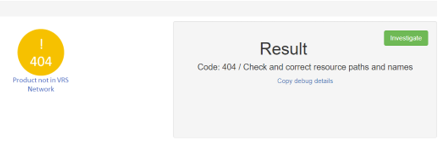
| The 2D barcode scanned does not exist in a VRS network. | Follow internal procedures for non-verifiable product. |
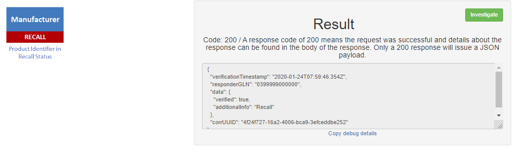
| The 2D barcode scanned belongs to a recalled product. | Follow internal procedures for Recalled product. |
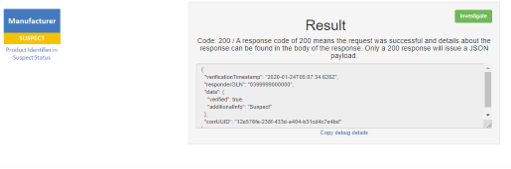
| The 2D barcode scanned is considered Suspect by the Manufacturer or the FDA. | Follow internal procedures for Suspect product. Re-scan the 2D barcode again after allowing time for the manufacturer to respond to the notification. |
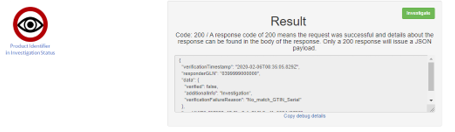
| The 2D barcode scanned has been previously scanned and has had an investigation record created.
The Result window will show the original reason for the verification fail and will add additional information that shows “Investigation”. | Product cannot be returned to a saleable product status.
Follow internal procedures for non-verifiable product.
Re-scan the 2D barcode again after allowing time for the manufacturer to respond to the notification |
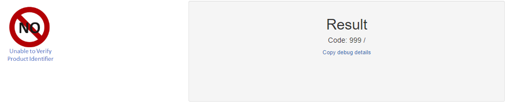
| The 2D barcode is not a valid 2D barcode. | Re-scan the 2D barcode to confirm the correct barcode was scanned and not a different barcode (UPC, QR or etc.) was originally scanned in error. If the same No result is returned Follow internal procedures for non-verifiable product[VP1] [RU2] . |
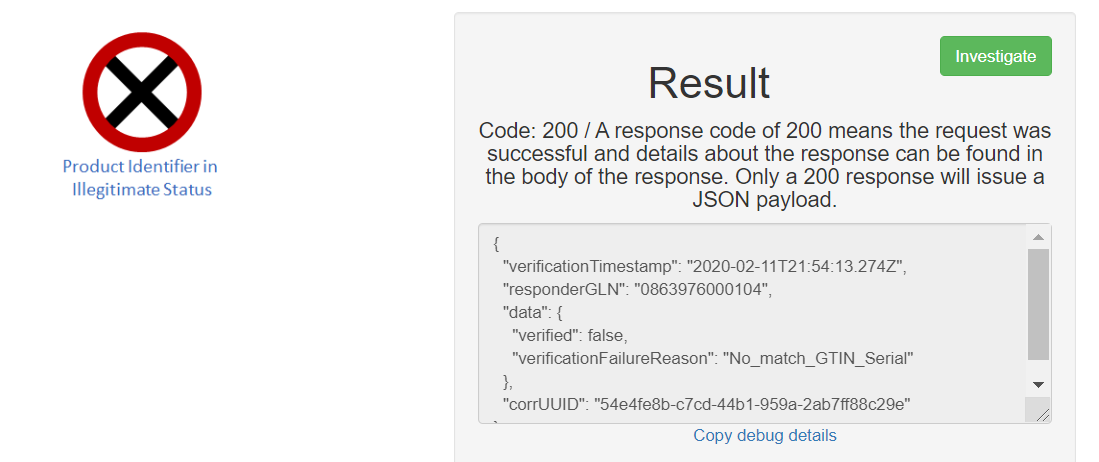
| The 2D barcode has been determined to be Illegitimate | Follow internal procedures for Illegitimate product. |
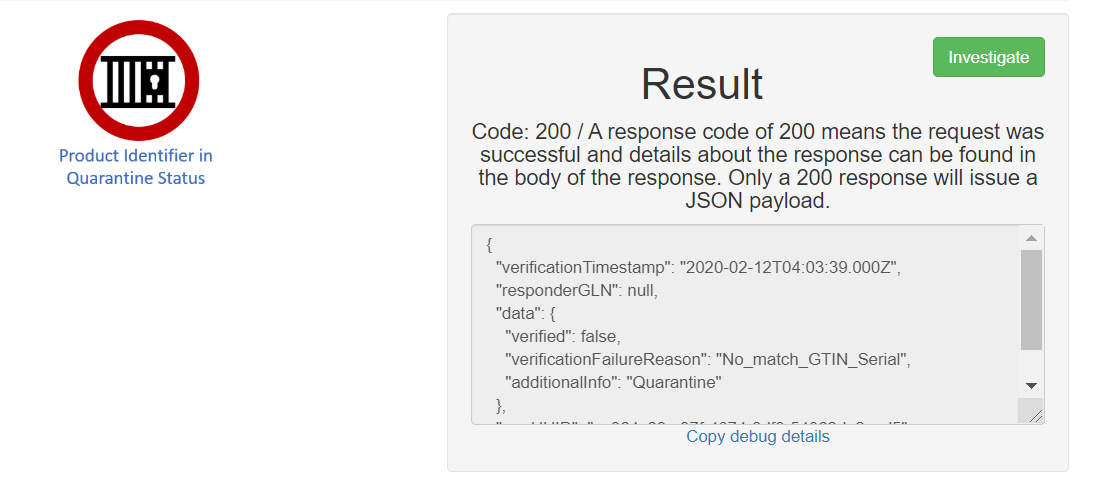
| The 2D barcode has been Quarantined | Follow internal procedures for Quarantine product. |
| The 2D barcode has been scanned by more than one location in 24 hours. | Follow internal procedures. |