
Getting Started
- Navigate to the OneScan website and log in to your account.
- In the top right corner, click on "My OneScan Account".
- From the drop-down menu, select "User Management".
- You will be directed to a page where you can add new users or edit existing ones.
- After making any changes to the users list, make sure to click "Save"
Add a New User
- Click the “Add a new user” button.
- Enter the user’s first and last name.
- Choose the appropriate permissions for the user:
- Full Permission – Grants visibility to orders for all locations in your company; can add/edit/delete suppliers, locations, and users in your company.
- Restricted Permission – Limits visibility to orders for the specific location the user is assigned to; can not add/edit/delete suppliers, locations, and users in your company.
- Full Permission – Grants visibility to orders for all locations in your company; can add/edit/delete suppliers, locations, and users in your company.
- Enter the user’s email address.
- Select the default page for the user. This may vary based on the user’s workflow and can be left blank if not applicable.
- The Entity field will be automatically populated based on your account.
- Choose the location the user should be assigned to.
- If the user needs to scan controlled items, ensure the "Scan in Orders with Controlled Substances" option is toggled on. This setting can be adjusted at any time.
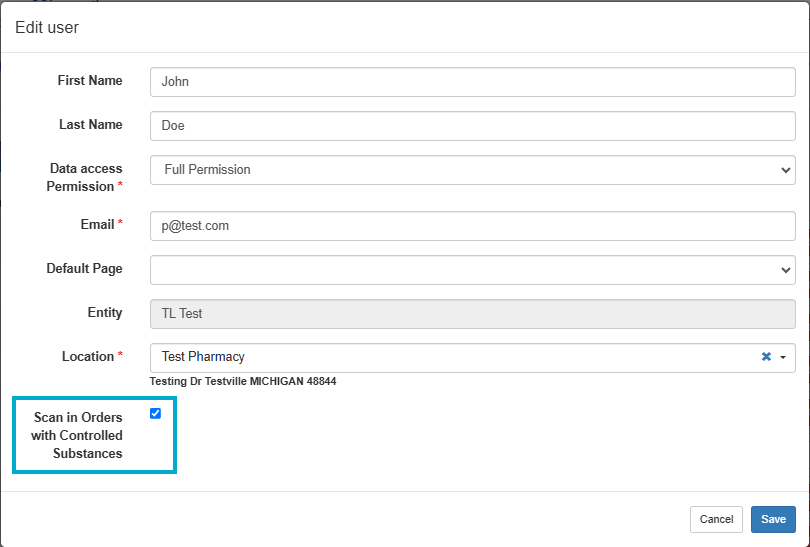
- Click Save once all fields have been completed.
- The user will receive an email to set their account password.
- If the email isn’t received after a few minutes, verify the email address and click Resend Link next to the user in the User Management screen.
- If issues persist, please submit a support ticket via our Support Portal.
- The user will receive an email to set their account password.
- Once the user sets their password, they will be able to log in to their new OneScan account.
Edit User information
- Locate the user you wish to edit and click the “Edit” button under the “Action” column.
- Make the necessary changes to the user’s details.
- Click Save to confirm your changes or Cancel to discard them.
Delete Users
- Find the user you want to delete and click the “Delete” button under the “Action” column.
- A confirmation prompt will appear. Click Ok to confirm deletion or Cancel to stop the process.
- If a user is deleted by mistake, you can easily re-add them by following the “Add a New User” steps outlined above.